meadhunt-mesh-backplate
Mead & Hunt BackPlate
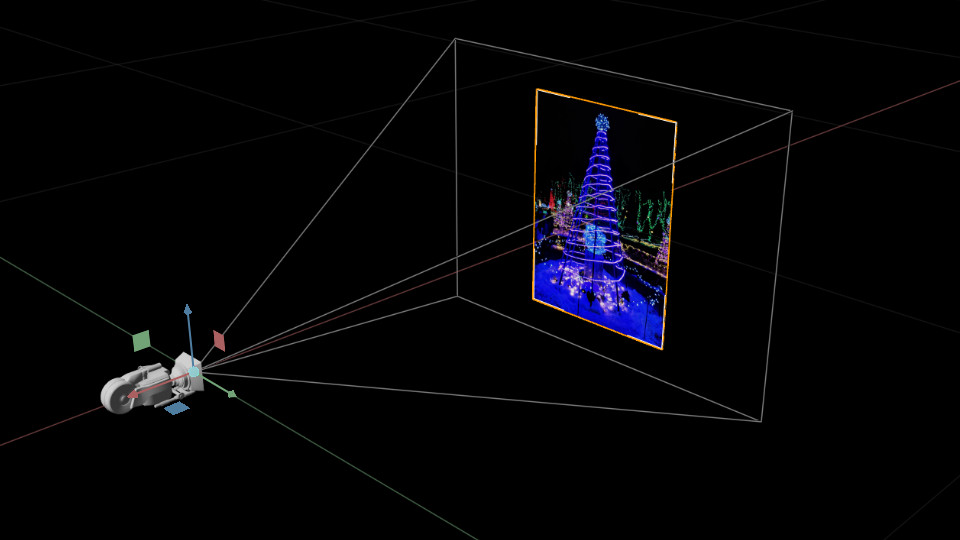
Inspiration
BackPlate was created based on the inspiration of the Maya image plane and Martin Breidt’s imagePlane maxscript.
It also provided me a chance to create a tool that is lacking in AEC Visualization, while learning Python, USD, and Kit APIs/workflows. Tools like Enscape, Twinmotion, and Lumion don’t really have ways to easily align a real photo with your digital world and all lack a way to extend the tool. With Omniverse we have a way to extend our visualization tools, and BackPlate was born out of this.
About
This tool was created so users can place a card with a background image (BackPlate) which is linked to the camera. These cards are typically used to align Omniverse cameras and models with real images. The card will match the original aspect ratio of the selected Texture and the user can select to maximize the Height or Width of the card to align with the viewport canvas. The card will properly scale based on the distance from the camera to ensure proper alignment. All materials are created by the tool using a custom emissive-only MDL file.
Usage
After installation the dialog can be opened from Window > Mead & Hunt > BackPlate.
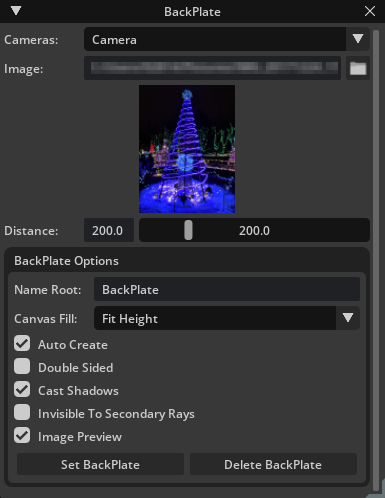
Cameras: Drop-down of all available perspective cameras.
NOTE:Includes the viewport Perspective CameraOmniverseKit_Persp.
Image: Path to the texture to be assigned to the BackPlate object. Folder button will open FilePickerDialog filtered to image formats supported by Omniverse.
NOTE:The material created and assigned is a custom emissive-only mdl(assets/BackPlate.mdl)with the name matching the BackPlate object it is assigned to.
Preview: Preview of image selected.
NOTE:Can be disabled in the BackPlate Options.
Distance: Controls for adjusting the distance from the Camera.
NOTE:Controls are linked to allow for soft maximum ranges. Values entered into theFloatFieldgreater than the maximum of the slider will grow the maximum by 10%, entering 2000 in the field will set the maximum to 2200.
Name Root: 'BackPlate' (default) String added at the beginning of the mesh name followed by underscore and camera name, ex BackPlate_Camera.
Canvas Fill: Drop-down of canvas fit methods.
Fit Height (default):Fits the image so the top/bottom aligns with the top/bottom of the viewport canvas.Fit Width:Fits the image so the left/right aligns with the left/right of the viewport canvas.
Auto Create: Toggle creating a BackPlate on the selected camera on any settings adjustment.
Enabled (default):Any UI change (including selecting a new camera) will create a BackPlate.Disabled:BackPlate only created whenSet BackPlateis pressed.
Double Sided: Toggle Double Sided option on the BackPlate material.
Enabled:Material is Double Sided and shows the same on both sides.Disabled (default):Material is Single Sided showing the image facing the camera and Black on the back.
Cast Shadows: Toggle Cast Shadows on the BackPlate Mesh object.
Enabled (default):Mesh cast shadows.Disabled:Meshdoes notcast shadows.
Invisible To Secondary Rays: Toggle Invisible To Secondary Rays on the BackPlate Mesh object.
Enabled:Meshis notvisible to secondary rays (reflection, refraction, GI, etc).Disabled (default):Meshisvisible to secondary rays (reflection, refraction, GI, etc).
Image Preview: Toggle Preview below the image input field.
Enabled (default):Preview ‘is’ shown.Disabled:Preview ‘is not’ shown, and the preview area is collapsed.
Set BackPlate: Button to manually create a New BackPlate.
NOTE:Set BackPlate should be used whenAuto Createis disabled.
Delete BackPlate: Button to manually delete the BackPlate and assigned Material attached to selected Camera.
Adding This Extension
To add this extension to your Omniverse app:
- Go into: Extension Manager -> Gear Icon -> Extension Search Path
- Add this as a search path:
git://github.com/ericcraft-mh/meadhunt-mesh-backplate.git?branch=main&dir=exts
To-Do List
- Update BackPlate on Camera parameter changes.
- Implement in viewport controls for adjusting BackPlate.
App Link Setup
If app folder link doesn’t exist or broken it can be created again. For better developer experience it is recommended to create a folder link named app to the Omniverse Kit app installed from Omniverse Launcher. Convenience script to use is included.
Run:
> link_app.bat
If successful you should see app folder link in the root of this repo.
If multiple Omniverse apps is installed script will select recommended one. Or you can explicitly pass an app:
> link_app.bat --app create
You can also just pass a path to create link to:
> link_app.bat --path "C:/Users/bob/AppData/Local/ov/pkg/create-2021.3.4"
Contributing
The source code for this repository is provided as-is, but I am accepting outside contributions.
Issues, Feature Requests, and Pull Requests are welcomed.